Connect smart glasses to Wi-Fi
Make a Wi-Fi QR code in SignGlasses and look at it through RayNeo or Vuzix smart glasses to put them online.
The glasses need Wi-Fi to show your session. To put them on a network, make a Wi-Fi QR code in SignGlasses and look at it through the glasses. They remember the network and rejoin it on their own after that.
Make a Wi-Fi QR code
Open Smart glasses in the sidebar. The form is under Wi-Fi QR code generator.
You can also make the code in a session, before you pair the glasses:
- In your browser, select Settings, then Glasses, then Set up Wi-Fi.
- In the mobile app, select the glasses icon, then Connect glasses to Wi-Fi.
The form is the same in every place:
- Under Security, select Password for a network with one password that everyone uses, or for an open network. Select Username & password if each person signs in with their own account.
- Enter the Network name exactly as it appears in your Wi-Fi list. Capital letters matter.
- For a Username & password network, enter the Username.
- Enter the Password. Leave it blank for an open network.
- Select Generate QR code.
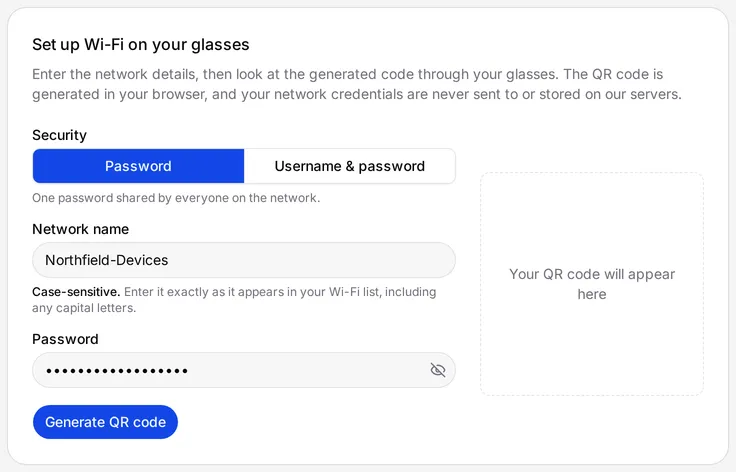
The code is made on your own device. SignGlasses never receives or stores your network details.
Important
A Username & password code contains your own sign-in, so anyone who scans it can sign in as you. Do not print it, and close it when the glasses are connected.
Scan the code with the glasses
- Turn on the glasses and bring up the “Scan a QR Code” screen:
- RayNeo glasses show it when they start. See Use RayNeo smart glasses.
- On Vuzix glasses, open the SignGlasses app. See Use Vuzix smart glasses.
- Look at the QR code through the glasses. They show “Connecting to” and the network name.
- Vuzix glasses then ask whether to save the network. Accept it.
When the glasses join, they show “Connected to” and the network name.
If the glasses do not connect
- “Could not connect to” and the network name: check the network name and the password, including capital letters. Make a new code and scan it again.
- “Turn on Wi-Fi to connect”: the Wi-Fi on the Vuzix glasses is off. Turn it on in the settings screen the glasses open, then scan the code again. See Connect Vuzix glasses to Wi-Fi from their settings.
- “Wi-Fi didn’t start — restart the glasses”: restart the glasses, then scan the code again.
Wi-Fi that makes you sign in on a web page, such as hotel or guest Wi-Fi, does not work with a QR code. Use a phone hotspot, or ask your IT team for a network the glasses can join.