Customize your captions
Change the font, size, colors, and spacing of the captions you see in a session.
Caption settings change how captions look for you. They do not change what anyone else in the session sees.
Open the caption settings
In a browser:- Join the session.
- Select Settings at the bottom right of your screen.
- Select Configure captions. The captions preferences open on the right side.
You can also hover over the caption window and select Configure.
In the mobile app:
- Join the session in the app.
- Press and hold the captions.
- Select Configure.
Choose how captions look
- Font family: Arial, Open Sans, Poppins, Roboto, or Open Dyslexic.
- Font weight and Font size.
- Font color and Background color.
- Line spacing: the space between lines, from single to double.
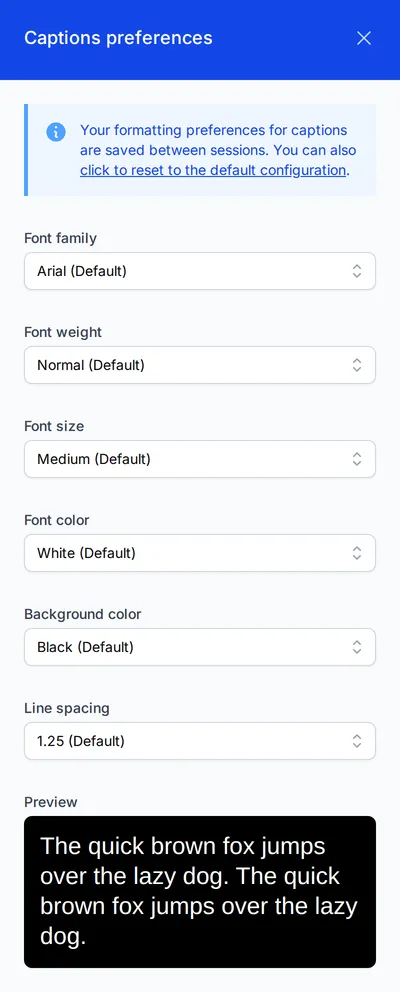
A preview at the bottom shows how your captions will look. To undo your changes, select the reset link at the top of the panel.
The mobile app has all of these settings except Font weight.
Your settings follow you
Settings you choose in a session are saved to your account. They apply in your next session, in any browser. If you pop the captions out into their own window, the new window opens with the same settings.
Scrolling is also yours to control.
- In a browser, the Autoscroll checkbox at the bottom right of the caption window keeps the newest captions in view. Clear the checkbox to scroll up to something that was said earlier.
- In the mobile app, the screen scrolls to the newest captions on its own. Swipe to read earlier captions. Scroll back to the bottom to follow the newest captions again.