Review your recorded videos and notes
Watch the recording of a past session and go back to your notes, bookmarks, and summary on the Session Recaps page.
A session recap brings together the recording of a past session, its transcript, and the notes and bookmarks you added during the session.
Open a session recap
- Sign in to SignGlasses in a browser.
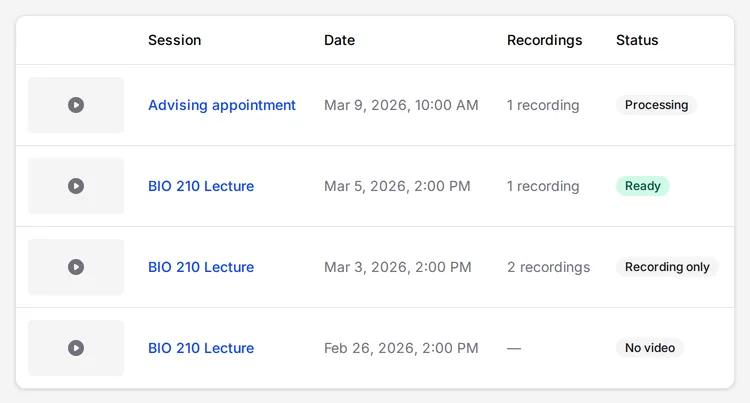
- Select Session Recaps in the sidebar. The page lists your past sessions with the title, the date and time, the number of recordings, and a status.
- Select the session you want to review.
The status tells you what to expect:
- Ready: the recap is complete.
- Processing: the recording has arrived and is still being processed.
- Issue: the transcript or summary could not be created. This also happens when the recording has no speech in it. The video is still available to watch.
- Recording only: the session was recorded before May 19, 2026. The video is available, but there is no AI-generated transcript or summary.
- No video: the session has no recording. Your notes and any transcript still appear.
If you expect a recording and do not see it, ask your administrator.
Watch the recording
- If the session has more than one recording, select a number below the video to switch between them. This happens when a session was interrupted and resumed.
- If a video has expired or been deleted, the player says the video is unavailable. The transcript, summary, and notes still appear.
- Select Theater mode at the top right of the video to make it wider. The summary and notes move below the video. Select Exit theater to go back.
- Select the captions button in the video controls to show captions on the video. In a captioned session, these are your captioner’s words when their timing is available. Otherwise they are AI-generated, and the caption menu labels them that way.
The transcript is below the video. See View your transcripts.
Read the summary
The side panel shows an AI-generated summary of the session. Select Show more to open a long summary. The thumbs-up and thumbs-down buttons tell SignGlasses whether the summary was helpful.
Without AI summaries, the recap does not show a summary.
Go back to your notes and bookmarks
The notes and bookmarks you added during the session appear under Bookmarks in the side panel. Each one shows its position in the video. Select one to move the video to that moment.
Notes that do not match a recording appear under Session notes, without a time. This covers sessions with no recording and notes you added while the recording was stopped. To add notes in your next session, see Take notes in your sessions.
Move through a repeating series
If the session is part of a repeating series, two buttons at the top of the page open the sessions before and after it. Each button shows the date of that session, with an arrow pointing back or forward.
In the mobile app
- Sign in to the SignGlasses mobile app.
- Select Settings at the bottom right of your screen.
- Select Session history.
- Find the session in the list and select it.
- Scroll down to the Transcript and Recordings sections.
Notes and bookmarks do not appear in the mobile app. Sign in from a browser on a computer or tablet to review them.