Take notes in your sessions
Add time-coded notes and bookmarks during a session and find them next to the recording afterward.
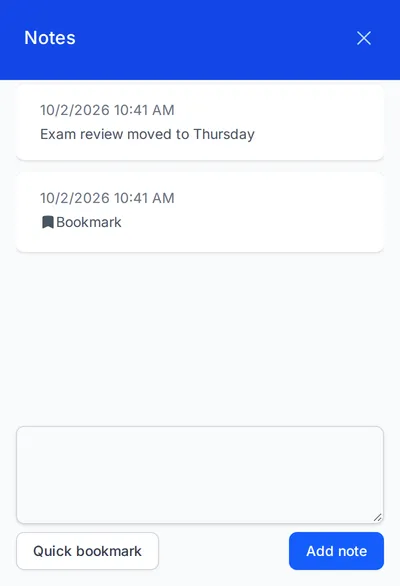
You can take notes inside a session in your browser, without keeping a separate window open. A note is text you type. A bookmark is a marker with no text. Both are saved with the time you added them.
Add a note
- Join the session.
- Select Notes at the bottom of your screen. The notes panel opens on the right side.
- Enter your note. To start a new line, press Shift and Enter together.
- Press Enter or select Add note to save it. The note appears in the list above.
Add a bookmark
Use a bookmark when you do not have time to type but you know you want to come back to that part of the session.
- Select Notes at the bottom of your screen.
- Select Quick bookmark.
Find your notes after the session
Your notes and bookmarks appear in the session’s recap. If your organization saves session recordings, they line up with the recording, and selecting one moves the video to that moment. See Review your recorded videos and notes.
In the mobile app
You cannot take notes in the mobile app. Join from a browser on a computer or tablet to use notes and bookmarks.