Share and pop out your caption window
Open live captions in their own window, share them with a link, or read them without joining the session.
The caption window is a separate window or tab that shows only the live captions. Anyone who has its link can open it. They do not need to sign in.
Pop out captions from a session
- Join the session.
- Hover over the caption window and select Pop out. The captions open in a new window.
- Resize the window and move it to wherever you want it on your screen.
The new window opens with the caption settings you were already using in the session.
Change how the caption window looks
- Select Settings at the top right to change the colors, font, size, and spacing of the captions. To undo your changes, select Reset preferences.
- Select Enter fullscreen at the top right to fill your screen with the captions.
The caption window remembers your settings in that browser. For the settings inside a session, see Customize your captions.
Share the captions
- Select Share at the top right of the caption window.
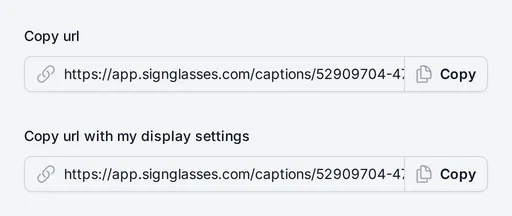
- Select Copy next to the link you want. Copy url is the plain link to the captions. Copy url with my display settings carries your current settings, so the captions open looking the way you set them up. It appears only after you change a setting.
- Send the link to the person who needs to see the captions.
A link with your settings applies them for that visit only. It does not replace settings the other person has already saved. It is also a quick way to move your own setup to another device.
For a repeating session, the same link works for every session in the series. A single session has its own link. After a session ends, its link no longer shows captions.
Open the captions without joining
If your audio and video are on another platform, such as Zoom, and your captioner captions on SignGlasses, you do not need to join the SignGlasses session to read your captions.
- Open the session details.
- Select the link under View captions.
If you use SignGlasses for audio and video as well, join the session instead.