Use the equipment check
Allow your camera and microphone, choose the devices you use, and join a session on SignGlasses.
When you join a session on SignGlasses, the equipment check opens first. You choose your devices there before anyone in the session can see or hear you.
Allow your camera and microphone
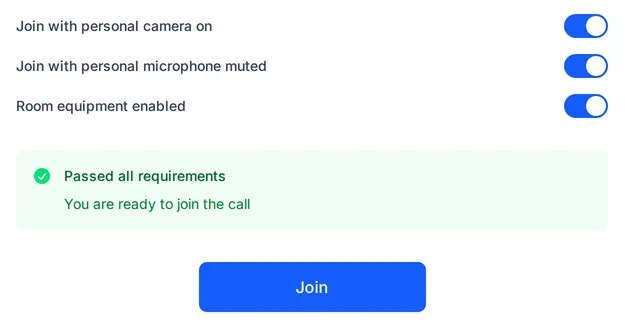
If your browser asks to use your camera and microphone, allow it. A green message then says you passed all requirements.
If a red message says the equipment check failed, the text under it says why:
- The browser does not have permission. See Enable camera and microphone in your browser.
- Another app or browser tab is using the camera or microphone. Close it, then refresh the page.
- No camera or microphone was found. Check that it is connected and turned on, then refresh the page.
Choose your devices and join
- Under Personal camera, choose the camera that faces you.
- Under Personal microphone, choose your own microphone. In an in-person session, keep Join with personal microphone muted turned on.
- Under Room camera, choose the camera that faces the presenter or the presentation.
- Under Room microphone, choose the external microphone you connected.
- Select Join.
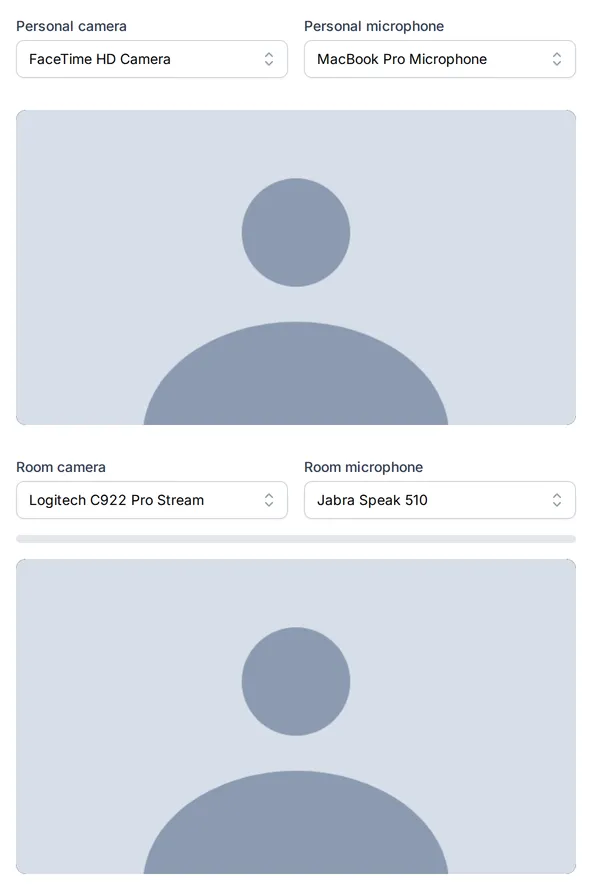
The room lists appear while Room equipment enabled is turned on. Each device can be used once: a device in use for the room is marked in the personal list, and the other way round. To give your only camera to the room, choose None under Personal camera.
If your external camera or microphone is not in a list, check that it is connected and turned on, then refresh the page.
When several users receive services in the same session, only one of them provides the room audio and camera. The first user to join connects the external microphone and leaves Room equipment enabled on. Everyone else turns Room equipment enabled off and turns Join with personal microphone muted on before selecting Join.
The equipment check remembers the devices you choose and selects them again in your next session.
Test your devices ahead of time
To check your camera, microphone, speakers, and connection without joining a session, select Equipment check in the sidebar.