Add prep material
Upload slides, agendas, or documents to a session so your interpreters and captioners can prepare.
Prep material helps your practitioners get ready for your session. Useful files include lecture or presentation slides, discussion documents, and meeting agendas. You can add them before the session or while it is running.
Upload a file
- Sign in to SignGlasses.
- Find the session on your dashboard and select it. You can also open Calendar, select the session, and select More details.
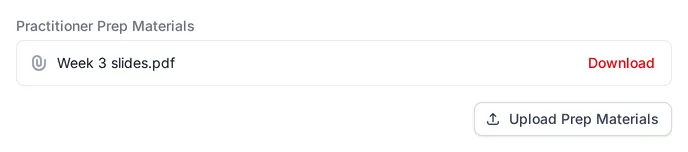
- Scroll down to Practitioner Prep Materials and select Upload Prep Materials.
- Select Choose File and pick one or more files from your computer.
- Select Save.
The files are listed under Practitioner Prep Materials on the session page, and your practitioners can see them.
If you have already joined the session in SignGlasses, you can reach the same page without leaving:
- Select Settings at the bottom of your screen.
- Select Session information.
- Select View session details. The session details open in a separate tab.
- Upload the file the same way.
You are still in your session. Go back to the other tab to see it again.