View your transcripts
Find, read, search, and download the transcript of a past session in a browser or in the mobile app.
A transcript should be available within 24 hours of the end of a session. If you expect a transcript and do not see it, ask your administrator.
Open a session recap
- Sign in to SignGlasses in a browser.
- Select Session Recaps in the sidebar. Your past sessions are listed by title and date.
- Select the session. The transcript is below the video.
The recap also holds the recording and your notes. See Review your recorded videos and notes.
Transcripts from your captioner
A captioned session shows the transcript your captioner wrote. When timing is available, it has two views:
- Synced shows the live captions as timestamped lines that follow the recording. Select a line to move the video to that moment.
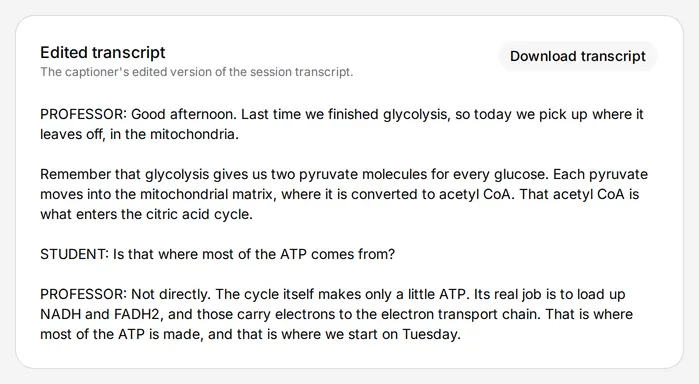
- Full text shows the whole transcript as one block. This is the captioner’s edited version when one was delivered.
Some sessions show only the full text. When your captioner uploaded a transcript file, select Download transcript to save it to your device. If the file cannot be shown on the page, such as a PDF or Word document, downloading it is the only way to read it.
Transcripts of interpreted sessions
An interpreted session shows an AI-generated transcript. It is closed at first, so select Show transcript to read it. Select any part of the transcript to move the video to that moment. Sessions recorded before May 19, 2026 do not have an AI-generated transcript.
Without AI transcripts, the recap of an interpreted session does not show a transcript.
Search a transcript
Enter a word in Search transcript. The number of matches appears below the box, and matching text is highlighted in the transcript. In an interpreted session with the transcript closed, the matches appear as a list instead. Select a match to move the video to that point. You cannot search a transcript that is only available as a download.
In the mobile app
- Sign in to the SignGlasses mobile app.
- Select Settings at the bottom right of your screen.
- Select Session history.
- Find the session in the list and select it.
- Scroll down to the Transcript section.