Session features
A tour of the control bar and the Settings menu in a SignGlasses session, with where to read more about each.
Most tools in a session are on the control bar at the bottom of your screen. Many of them open a panel on the right side.
To make a video or caption window larger or smaller, hover over it and select Pin or Unpin. See Adjust your video or caption window.
When the session is being recorded, the top left of your screen says Recording.
The control bar

- Chat sends messages to the people in the session. See Chat in a session.
- Support shows how to reach the SignGlasses support team without leaving the session. See Contact support.
- Settings opens the menu described below.
- Leave asks you to confirm, then opens the feedback page. See Rate your experience.
- Personal microphone and Personal camera turn your microphone and camera on and off. The gear icon next to them opens Devices.
- Notes adds time-coded notes and bookmarks. See Take notes in your sessions.
- Raise hand shows a hand on your video for a few seconds, for everyone in the session to see.
- In a session without a captioner, AI captions shows live captions generated automatically. See Use AI captions.
The Settings menu
The Settings button is at the bottom right of your screen.
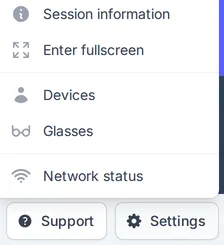
- Session information shows everyone assigned to the session and who has joined. View session details opens the session page in a separate tab.
- Enter fullscreen fills your screen with the session. Press Esc to go back.
- Network status shows the quality of your connection.
- Configure captions, in a session with a captioner, changes how captions look for you. See Customize your captions.
- Devices chooses the cameras and microphones you use. See Set up your external microphone and camera.
- Glasses connects your smart glasses to the session. See Adjust what you see in your smart glasses.
- Configure AI captions, in a session with AI captions, changes how they look for you. See Use AI captions.