Use Vuzix smart glasses
Turn on Vuzix smart glasses, open the SignGlasses app, and pair them to your session from a browser or the mobile app.
The glasses show your interpreter or your captions while you are in a session. You join the session in your browser or the mobile app, then pair the glasses to it.
Turn on the glasses
- Find the power button on the inner left side of the glasses.
- Press and hold it for 3 seconds. A green light appears next to the button.
- Put on the glasses. The Vuzix loading screen appears.
If you do not see the light or the loading screen, charge the glasses, wait a few moments, and try again.
Check the Wi-Fi
Swipe forward on the touchpad until you reach the gear icon. The Settings preview shows the name of the Wi-Fi network the glasses are connected to.
If the preview says Off, the glasses are not on Wi-Fi. Connect them before you continue. See Connect smart glasses to Wi-Fi.
Open the SignGlasses app on the glasses
- Tap the touchpad quickly 3 times to return to the home screen.
- Swipe forward to the SignGlasses app and tap the touchpad to open it.
The app shows “Scan a QR Code”. If “Connecting to Wi-Fi…” stays at the bottom of the screen, the glasses are not online. See Connect smart glasses to Wi-Fi.
Pair the glasses to your session
In a browser:
- Join your session.
- Select Settings at the bottom right, then select Glasses.
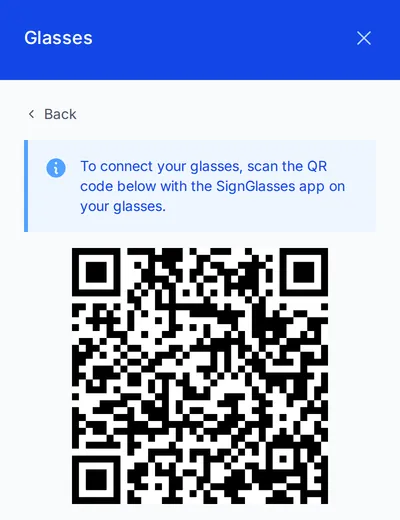
- Select Connect to this meeting. A QR code appears.
- Look at the QR code through the glasses.
In the mobile app:
- Join your session.
- Select the glasses icon at the bottom of the screen. A QR code appears.
- Look at the QR code through the glasses.
Your interpreter or captions appear in the glasses. Each session has its own QR code, so scan a new one every time you join a session.
To choose which interpreter appears, or to see the captions instead, see Adjust what you see in your smart glasses.
Turn off the glasses
Hold the power button for 2 seconds, then select Power off with the touchpad. Turning the glasses off saves battery and helps prevent overheating.