Use RayNeo smart glasses
Turn on RayNeo smart glasses, pair them to your session from a browser or the mobile app, and install updates.
The glasses show your interpreter or your captions while you are in a session. You join the session in your browser or the mobile app, then pair the glasses to it.
Turn on the glasses
Press and hold the power button, on the bottom right of the glasses, for 4 seconds. The glasses start up and show “Scan a QR Code”.
If nothing appears, charge the glasses, wait a few moments, and try again.
To turn the glasses off fully, hold the power button for 12 seconds.
Check that the glasses are online
While the glasses are joining a network, the bottom of the screen says “Connecting to Wi-Fi…”. The message goes away when they are online.
If it stays, the glasses need a Wi-Fi network. See Connect smart glasses to Wi-Fi.
Pair the glasses to your session
In your browser:
- Join your session.
- Select Settings, then select Glasses.
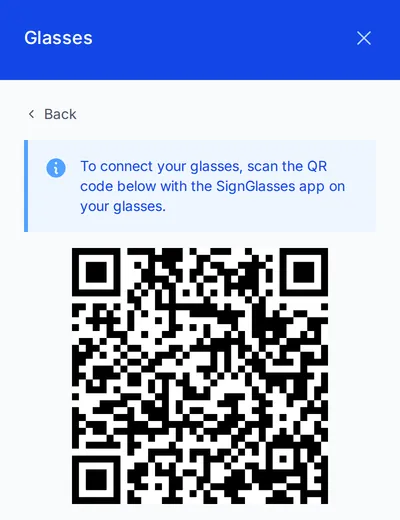
- Select Connect to this meeting. A QR code appears.
- Look at the QR code through the glasses.
In the mobile app:
- Join your session.
- Select the glasses icon at the bottom of the screen. A QR code appears.
- Look at the QR code through the glasses.
Your interpreter or captions appear in the glasses. Each session has its own QR code, so pair the glasses again each time you join a session.
To choose which interpreter appears, or to change the brightness, size, or position, see Adjust what you see in your smart glasses.
Updates
The glasses may show an update prompt when they connect to a session. Tap the side of the glasses to update now, or double-tap to dismiss the prompt and update after your session. A required update cannot be dismissed.
To see which app version your glasses run, open Settings, then Glasses, in your browser. The version appears under the message “The glasses are connected.”