Edit a session
Change the details of a scheduled session, or of every remaining session in a series.
Find the session
- Select Calendar in the sidebar.
- Select the session. A preview opens.
- Select the pencil icon at the top right of the preview.
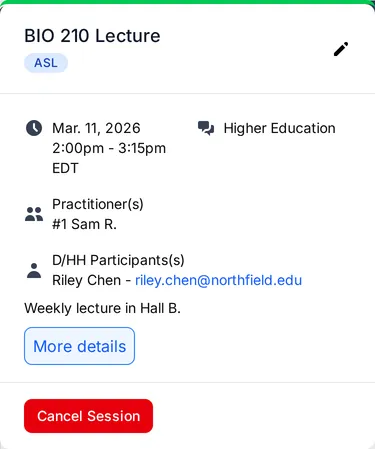
The Edit button on the session page opens the same form.
The form opens with the current details. Times on the form are in the session’s own time zone, which can differ from yours. If a time looks unexpected, check the time zone name below the times.
Make and save your changes
Change any of the details. The fields are the same as when you create a session.
Less than 24 hours before the session, you cannot change the date, the times, the time zone, the repeat schedule, or the services. A short notice message at the top of the form says so.
Select Update session to save, or Cancel to leave without saving. Cancel Session, at the bottom left of the form, cancels the session itself. See Cancel a session.
For a session in a series, Update session first asks whether the change applies to this session only or to the following sessions too. See Repeat a session.
If a practitioner is already assigned
When a SignGlasses practitioner is assigned, changing the date, the start or end time, the services, or a practitioner’s location releases them. SignGlasses then looks for a practitioner again. While every spot on the session is filled, the form shows a schedule change notice to remind you.