View your organization's usage
See the sessions and recordings your organization used, what each one cost, and export the list.
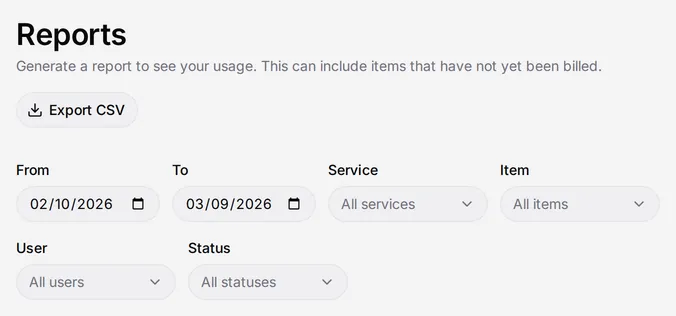
The Reports page lists the sessions and recordings your organization used, with the cost of each. Only administrators can open it. Select Reports in the sidebar.
What the report includes
The report updates each morning. A session from earlier today, or a change made today, appears after the next morning’s update.
The list can include records that have not been billed yet.
People in your organization appear with their full names. Practitioners from outside your organization appear with their first name and last initial.
Filter the report
- From and To. The report starts out showing the past month through yesterday. You can choose any dates from 18 months ago to one year ahead.
- Service. Choose a service, such as ASL, CART, or TypeWell. Choose All services to clear the filter.
- Item. Choose Interpreting Session or Recording. Choose All items to clear the filter.
- User. Show only the records where that user was a participant. The list holds the users in your organization. Choose All users to clear the filter.
- Status. Choose Past, Scheduled, or Cancelled. A cancelled session appears on the report only if it was cancelled inside the billing window and was still billed. A session cancelled before the billing window does not appear at all. Choose All statuses to clear the filter.
Service also offers Travel, for the travel fees of onsite practitioners.
The report has a Cost Center column, and a Cost center filter. Choose All cost centers to clear it.
Sessions with more than one rate
A session is sometimes billed at more than one rate. It appears as one row with the session’s total minutes and amount. A line beneath the row shows each rate and names the practitioners that rate covers.
Export the report
Select Export CSV at the top right. The file holds every page of the table with your current filters applied. Open it in Excel or Google Sheets.