Create a session
Schedule interpreting or captioning for a class, meeting, or event.
A session holds the details of a class, meeting, or event. SignGlasses uses those details to find practitioners for it.
Start a session
- Select Add Session on your dashboard, or at the top right of the Calendar page.
- Enter a Title.
- Select a Category.
- Under Preferred practitioner experience, select at least one option. Practitioners see it when they decide whether to accept the assignment.
- Enter the Date, the Start time, and the End time.
If your organization has only one category, the form shows a single list labeled Category in place of steps 3 and 4.
You can also select an empty day on the calendar to start a session on that date.
The form starts in the time zone on your profile. To schedule for attendees in another time zone, select the time zone name below the times, choose their time zone, and enter the time as it will be for them.
For a class or meeting that repeats, turn on Repeats below the times and set the schedule, as described in Repeat a session.
Choose the service
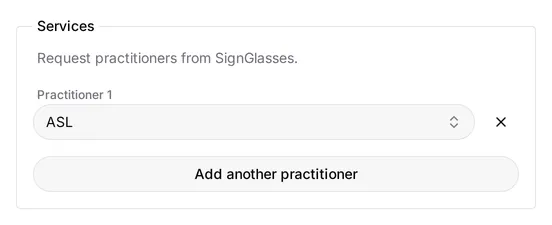
- Under Services, select Add a practitioner.
- Choose the service, such as ASL, CART, or TYPEWELL. The list shows the services your organization uses.
- To request more than one practitioner, select Add another practitioner and repeat.
Scheduling your own practitioners
In the practitioner list, keep SG Practitioner for SignGlasses to find someone, or choose one of your own practitioners.
Multiple services in one session
To provide interpreting and captions in the same session, add practitioners with different service types. Attendees see the interpreter window and the caption window together.
For each practitioner, choose Remote or Onsite in the Location list. You cannot submit the session until every practitioner has a location.
For an onsite practitioner, enter the City, State, and Street address. Use Location details for anything else the practitioner needs, such as the entrance, parking, room, or a contact. Practitioners see only the city and state until they accept the assignment.
Add attendees
Under Attendees, select everyone who receives services.
If someone is missing, add them as a user first.
For an open event with no named attendees, select General Audience in the attendees list. This clears any attendees you already chose.
Every session needs a cost center before you can save it. The session uses the cost center on the first attendee’s profile, and the form shows which one the session will carry. To bill a different one, enter it in Cost center override.
If the first attendee has no cost center, or the session is for a general audience, enter one in Cost center override. The cost center appears on your reports and invoices.
Set the platform
Choose where each part of the session runs. Both start on SignGlasses:
- Audio platform is where the practitioner receives audio.
- Practitioner platform is where the practitioner provides services.
Select External for any part that runs on another platform. The External platform URL field appears.
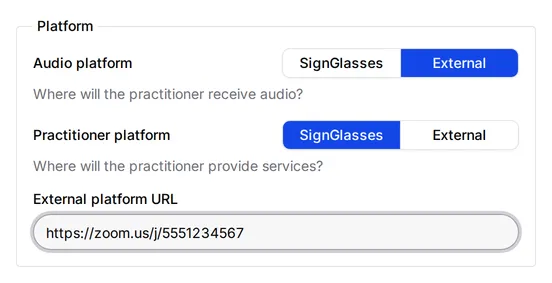
If the session runs on Zoom, Google Meet, Microsoft Teams, or another external platform, enter the meeting link in External platform URL under Platform.
If you do not have the link yet, leave it blank. SignGlasses emails you a reminder 24 hours before the session and again 1 hour before, while the link is still missing. See Add an external link to a session.
Add prep materials and notes
Under Attachments, select Upload file to add anything that helps the practitioners prepare, such as presentation slides, discussion documents, or agendas.
The notes are optional:
- Public description is for general information, such as what the meeting is about. Practitioners and attendees can read it.
- Add more notes adds a note for the practitioner, the attendee, or the SignGlasses Customer Care Team. Each note is for that reader only, though administrators at your organization can also read the practitioner and attendee notes. The Customer Care Team note is a good place for preferred practitioners or contact details.
Save the session
Select Add session. The session appears on your calendar, and SignGlasses starts looking for practitioners if any are needed.