Upload your certifications and licenses
Add your certifications and licenses to your profile so SignGlasses can approve them and track renewals.
Uploading your certifications and licenses lets you and SignGlasses track when they need to be renewed. It also helps make sure you are notified about available assignments that require them.
Open the Documents tab
- Select View profile at the bottom left of the screen.
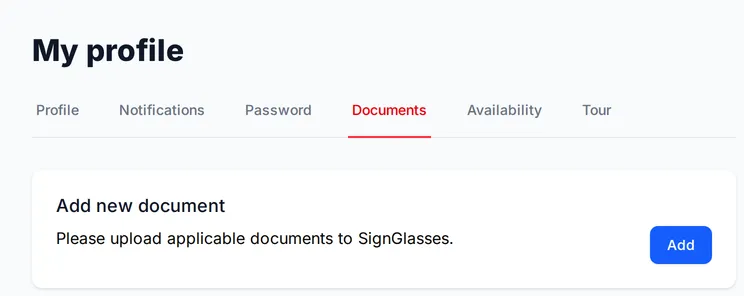
- Open the Documents tab.
- Select Add.
Upload a document
- Select the certification or license from the list. You can search the list by name.
- Select Choose file and pick the file from your device.
- If the form asks for an Expiration date, enter it.
- Select Submit.
The document appears under Documents pending approval.
Repeat these steps for each certification and license you hold.
Wait for approval
The SignGlasses operations team reviews every upload, and contacts you if there is a problem. An upload does not count until it is approved. Approved documents move to Approved documents.
Renew a document
SignGlasses emails you when a document is within 30 days of its expiration date. Once the date passes, the document is also listed under Expired documents.
To upload a renewed copy, select Update next to the document, then follow the upload steps above.