Customize your notifications
Choose which emails SignGlasses sends you, and how often you hear about available assignments.
SignGlasses emails you about available assignments, session changes, cancellations, and reminders. Every notification is on until you turn it off.
Open your notification settings
- Select View profile at the bottom left of the screen.
- Open the Notifications tab, next to Profile.
Choose which emails you get
The tab lists these notifications:
- Session changes: changes to sessions you are assigned to, including reschedules.
- Cancellations — your sessions: a session you are assigned to is cancelled.
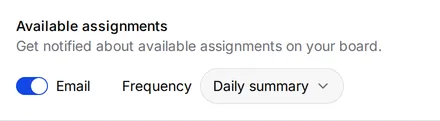
- Available assignments: new assignments arrive on your job board.
- Session reminders: reminders about your upcoming sessions.
To change them:
- Turn off the Email toggle for each notification you do not want. Turn it back on to get those emails again.
- Select Save.
Choose how often you hear about available assignments
- Under Available assignments, open the Frequency menu.
- Choose one:
- Daily summary: one email a day with the number of new sessions waiting on your job board. This is the default.
- Immediately: one email for each session, a few minutes after it becomes available to you.
- Select Save.
These emails do not name specific jobs. Open your job board to see the assignments.
Frequency is unavailable while the Email toggle for Available assignments is off. To stop these emails completely, turn that toggle off.