Chat in a session
Send messages to the other people in your session and see when someone replies.
The session chat reaches the client and your team. They can message you too.
Send a message
- Join the session.
- Select Chat at the bottom of your screen. The chat opens on the right side.
- Enter your message in the box below the messages.
- Press Enter to send it.
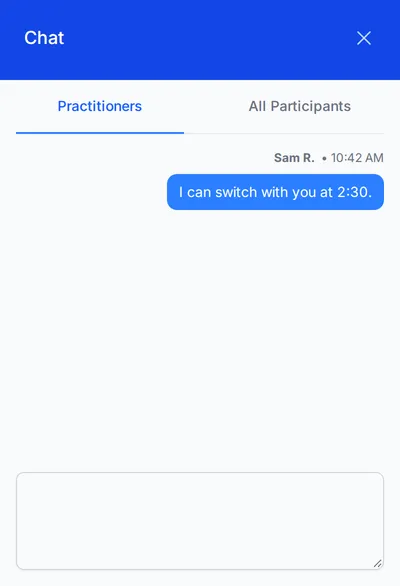
The chat has two tabs:
- All Participants: everyone in the session can see these messages.
- Practitioners: only your team can see these messages. The client cannot. Use this tab for handoffs and anything the client does not need to be notified about.
See new messages
A red dot appears on the Chat button when someone sends you a message. Select Chat to read it. You can close the chat after you send a message. The red dot tells you when someone replies.
Who the chat reaches
The chat reaches only the people in the session. It does not reach SignGlasses support, and support is not notified about it. Someone from support may join the chat if a person in the session has already asked for help.