Sync your calendars
Add your assigned SignGlasses sessions to Google Calendar, Apple Calendar, or Microsoft Outlook.
Syncing adds every session you are assigned to your personal calendar, and keeps it up to date as sessions are scheduled or cancelled. Each event links to its session page in SignGlasses. It works with Google Calendar, Apple Calendar, and Microsoft Outlook.
The sync goes one way. SignGlasses publishes your sessions, and your personal calendar subscribes to them. Your calendar app decides how often it checks for changes, so your SignGlasses calendar is always the most accurate record of your schedule.
Copy your SignGlasses calendar link
- Select View profile at the bottom left of your screen.
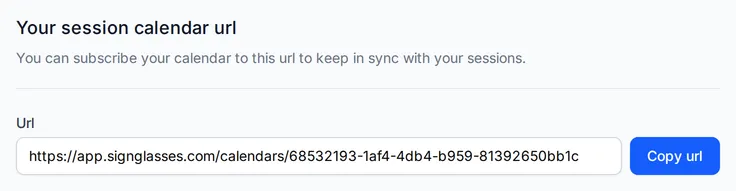
- Under Your session calendar url, select Copy url.
Important
Anyone who has this link can see your session titles and times. Do not share it.
Add the link to Google Calendar
- Open Google Calendar.
- Select the gear icon at the top right, then select Settings.
- Select Add calendar on the left, then select From URL.
- Paste the link.
- Select Add calendar.
Add the link to Apple Calendar
- Open Apple Calendar.
- Select File, then select New Calendar Subscription.
- Paste the link and select Subscribe.
- Name the calendar and set your preferences.
- Select OK.
Add the link to Microsoft Outlook
- Open your Outlook calendar.
- Select Add calendar on the left, then select Subscribe from web.
- Paste the link.
- Name the calendar and set your preferences.
- Under Add to, select My calendars.
- Select Import, then close the window.
Your assigned SignGlasses sessions now appear on your personal calendar.
Stop syncing
Remove the subscription from your personal calendar.
To let SignGlasses see when you are busy, see Share your calendar availability.