Caption in a session
Type captions into a SignGlasses session, move the typing box, and read back what readers see.
When you caption a session on SignGlasses, you type into a box on your screen, and readers see your captions as you type. To get into the session, see Join a session.
Type your captions
The typing box is at the bottom of your screen. Type your captions there. Every change you make, including a correction, reaches readers as you type it.
If a partner captions the same session, you both type in the same box, and each of you sees the other’s text as it arrives.
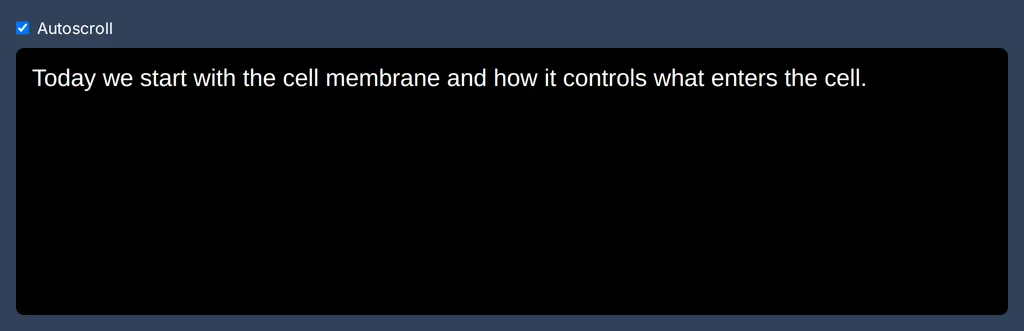
The Autoscroll checkbox above the box keeps the newest text in view. Clear it to scroll back through what has been written. Select it again to follow the newest text.
Move the typing box
- Select Settings at the bottom right of your screen.
- Select Configure captions. The captions preferences open on the right side.
- Under Typing window location, choose Top or Bottom.
The box moves right away, and your choice is saved for your next session. The same panel changes how the text looks on your screen. See Customize your captions.
Read back what readers see
The Captions window shows your captions the way readers see them, so you can check what you sent. It is pinned when you join. To make it smaller or move it to the gallery, see Adjust your video or caption window.