Submit your invoices
Create an invoice for completed SignGlasses sessions and follow it until it is paid.
You submit all of your invoices on the SignGlasses platform. There is nothing to download.
A session can go on an invoice 24 hours after it starts.
Create the invoice
- Select Invoices in the sidebar. The page lists the invoices you have already submitted and their status. Before your first invoice, it says you do not have any invoices submitted yet.
- Select New at the top right.
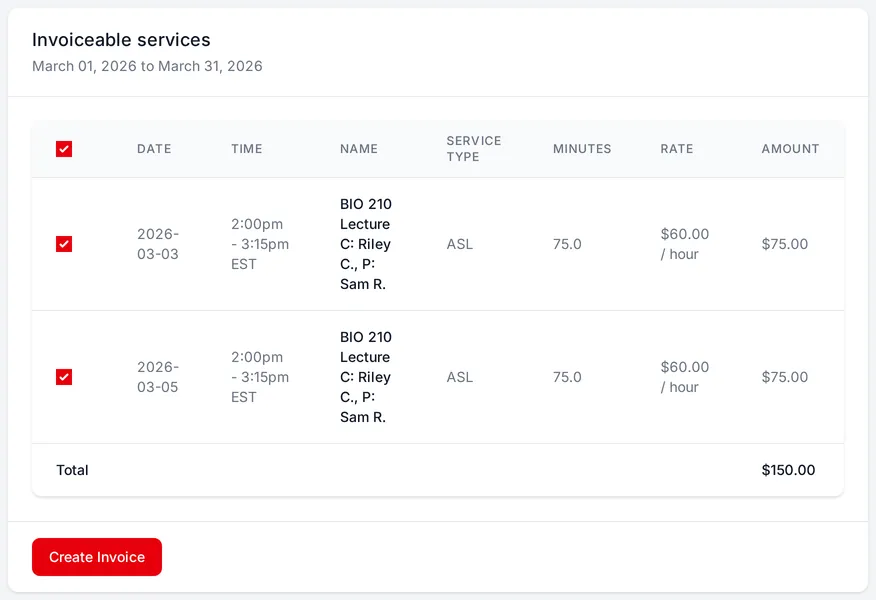
- Choose the date range for the sessions. Every session in that range that is not on an invoice yet appears under Invoiceable services, already selected. Each shows its date, time, name, service type, minutes, rate, and amount, with the total at the bottom.
- To leave a session out, clear its checkbox. It stays available for a later invoice.
- Select Create Invoice.
The invoice is submitted, and its details appear. Select Back to Invoices to return to the list.
If no sessions appear, the page says there are no invoiceable services in the time range you selected. Choose a different range.
Follow the status
The Invoices page shows each invoice’s status:
- Pending: SignGlasses has not processed the invoice yet. Every new invoice starts here.
- Scheduled: SignGlasses has processed the invoice.
- Paid: the invoice’s payment date has passed.
Get paid
The payment date is 30 days after you submit the invoice. To see it, select the invoice’s number in the ID column.
Within 30 days of submitting your first invoice, you get an email from bill.com. Wait for this email. Do not go to bill.com directly.
If the email does not arrive within 30 days, check your spam folder, then email ops@signglasses.com.
To update your name, address, or direct deposit details, sign in to your bill.com account after you receive the email and change them there.