Claim assignments on the job board
Find open SignGlasses assignments on your board, read the details, and accept the ones you can work.
The job board lists SignGlasses assignments that need a practitioner and that you can accept yourself.
Open your board
Select Board in the sidebar.
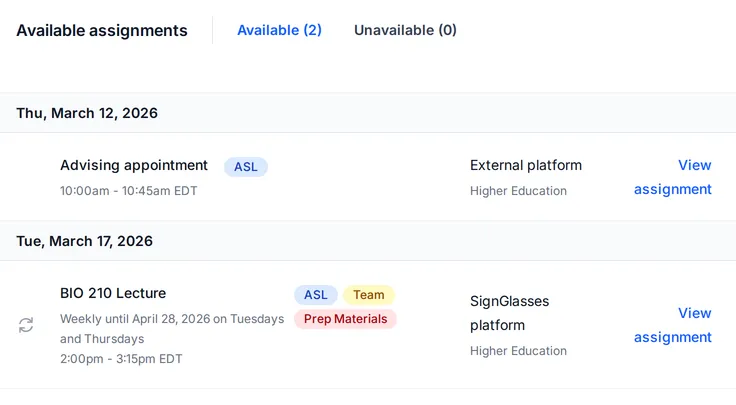
Assignments are grouped by day, starting with the earliest, and by start time within each day. Times are in your time zone.
Your board leaves out any assignment that overlaps a session you already have, a busy time on the calendar you share with SignGlasses, or the hours outside your weekly availability. See Manage your schedule and availability.
Read a listing
Each listing shows the title, the date and time, and badges:
- Service type. The service you would provide, such as ASL or CART.
- Team. More than one practitioner provides your service in this session.
- Multi-service. The session has more than one service, such as interpreting and captioning. Another practitioner provides the other service.
- Prep Materials. The organizer attached materials to prepare with.
- Partially Filled. Another practitioner already took some dates of this recurring assignment.
- Onsite. The assignment is in person. The assignment page shows the city and state. You see the full address after you accept.
Under the title, a recurring assignment shows the days it repeats on and the date it ends.
On a computer, each listing also says whether the session runs on the SignGlasses platform or on an external platform, and shows the setting and the kind of session, such as Higher Education and Classroom/Lecture.
Before you accept a recurring assignment
Accepting a recurring assignment assigns you to every remaining date that still needs your service. The assignment page lists them under Available Dates.
Important
Accept only if you can work most of those dates. When you accept, a dialog says how many you are expected to work, which is at least 80 percent of them.
If you want the assignment but are not sure you can work that many, email ops@signglasses.com before you accept.
Accept an assignment
Do not accept an assignment if you know you must start late or leave early.
- Select View assignment. On a phone, it reads View.
- Read the session information, such as how many DHH users are attending and the preferred experience.
- Select Accept.
- If the assignment is recurring, a dialog opens. Select Accept again.
You are assigned right away, and the session appears in your calendar.
Assignments go to the first practitioner who accepts. When every spot is filled, the assignment leaves every board.
Pass on an assignment
On the assignment page, select Unavailable. The assignment moves to the Unavailable tab of your board.
To change your mind, open the Unavailable tab, select View assignment, and select Accept.
Get notified about new assignments
SignGlasses emails you when assignments reach your board: once a day by default (Daily summary), or a few minutes after each one (Immediately). The emails say how many assignments are waiting, not which ones. To change how often, see Customize your notifications.
Short-notice assignments
For a last-minute request, SignGlasses contacts you directly by text or email, sometimes with a link that opens the assignment. If another practitioner has already accepted it, the page says the assignment is no longer available.