Join a session
Open a scheduled session, check where it runs, and join on SignGlasses or on an external platform.
Every session you are part of appears on your dashboard and in your calendar.
Get your equipment ready
Before you open the session, check that:
- Your headset is plugged in.
- You are on a wired (ethernet) connection.
- Your captioning software is connected.
Open the session
- Sign in to SignGlasses.
- Find the session on your dashboard and select View details.
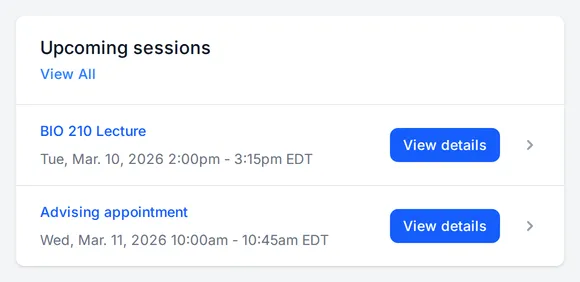
You can also open it from Calendar: select the session, then More details.
The session page shows the details of the session, including notes, the practitioners, prep materials, and where the session runs.
Check where the session runs
Look at the External Platform section of the session page. It shows one of these:
- A link. The session uses an external platform such as Zoom or Teams. The text under the link says which parts of the session happen there.
- The external platform link has not yet been provided. The page asks you to contact the SignGlasses operations team. Do so right away if the link is still missing when it is time to join.
- No external platform provided. The session runs only on SignGlasses.
A session can also use both SignGlasses and an external platform. The text under the link then says which part happens where:
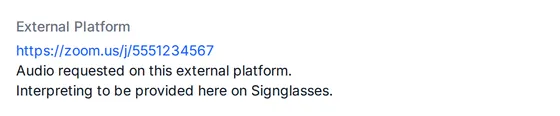
Join the session
The buttons at the top right of the session page match where the session runs.
When the whole session runs on an external platform, select Join on external platform, or select the link itself.
When the session runs on SignGlasses, select Go Live.
When the session uses both SignGlasses and an external platform, the page shows two buttons. Select both, so that both platforms are open. When the audio is on the external platform, users and interpreters see Join audio on external platform and Join video on SignGlasses, and captioners see Receive audio on external platform and Provide captions on SignGlasses.
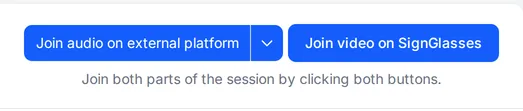
When a session uses both platforms, the audio and video come from the external platform and you caption into SignGlasses.
On SignGlasses, the equipment check opens before the session does. See Use the equipment check.