Edit and discard users
Change a user's profile, role, permissions, or notifications, or remove them from your organization.
The steps are the same for administrators, users, and practitioners.
Find the user
- Select Users in the sidebar.
- Search by name or email, or filter the list by role.
Choose what to change
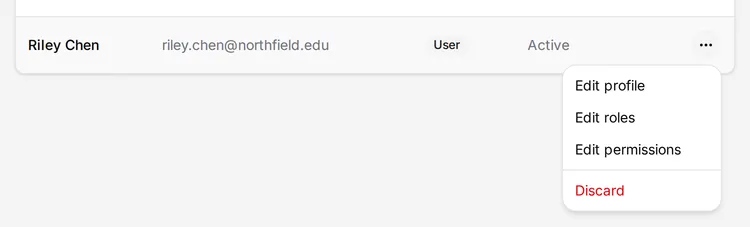
Open the menu at the end of the user’s row, then choose an option:
- Edit profile: change their name, email address, phone numbers, time zone, and other details. Select Save when you are done.
- Edit roles: give them a different role, Admin or User. Each user has one role. Select Save when you are done.
- Edit permissions: for a user with the User role, choose whether they can request sessions or create them. See Allow and approve session requests.
- Discard: remove the user. See the next section.
A user who has not yet accepted their invitation also has Resend invitation in this menu. See Add users.
Scheduling your own practitioners
Edit roles also offers Practitioner, for an interpreter or captioner. When you choose it, also choose the services they provide under Service types.
Edit profile for a user with the User role also has their Cost center number.
Discard a user
- Open the menu at the end of the user’s row and select Discard.
- Select Discard user to confirm.
The user loses access and no longer appears on your Users page. To get a discarded user back, contact support.
Change a user’s notifications
- Open the menu at the end of the user’s row and select Edit profile.
- Open the Notifications tab.
- Turn each Email toggle on or off.
- Select Save.