Add users
Add a user, practitioner, or administrator to your organization and track their invitation.
Start a new user
- Select Users in the sidebar.
- Select New user at the top right.
- Choose the kind of user: Admin manages users, sessions, and billing, and User joins sessions and receives services.
Scheduling your own practitioners
You can also choose Practitioner, for an interpreter or captioner who works for your organization.
Enter their details
- Enter the user’s first name, last name, and email address. Pronouns are optional.
- To add a phone number, select Add phone number, choose the type, and enter the number.
- Choose their Timezone.
- Select Save.
Scheduling your own practitioners
For a practitioner, choose the services they provide under Services before you save, such as ASL, CART, or TypeWell.
For a user, enter their Cost center number before you save. A session uses the cost center of its first attendee unless an administrator enters a different one.
The user appears on the Users page. SignGlasses emails them an invitation with a Create my account link, where they set their own password. They cannot sign in until they follow that link. The link expires after 7 days.
Check whether they accepted
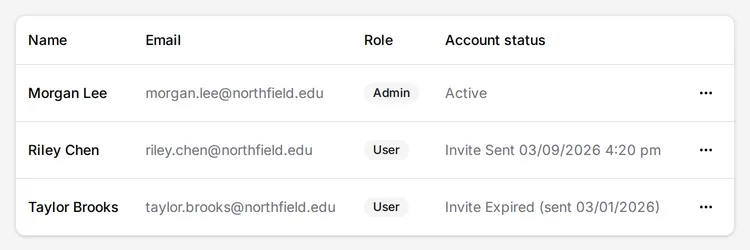
The Account status column on the Users page shows where each user is:
- Active: the user accepted the invitation and can sign in.
- Invite Sent, with a date: the invitation is still valid and not yet accepted.
- Invite Expired, with a date: the link expired before the user accepted it.
Resend an invitation
- Open the menu at the end of the user’s row.
- Select Resend invitation.
This option is available while the status is Invite Sent or Invite Expired. If the old link has expired, the user gets a new one.
A user who has not accepted their invitation cannot use Forgot your password?, because no reset email is sent to an account without a password. If a new user tells you the reset email never arrived, resend their invitation.
To change or remove a user later, see Edit and discard users.